
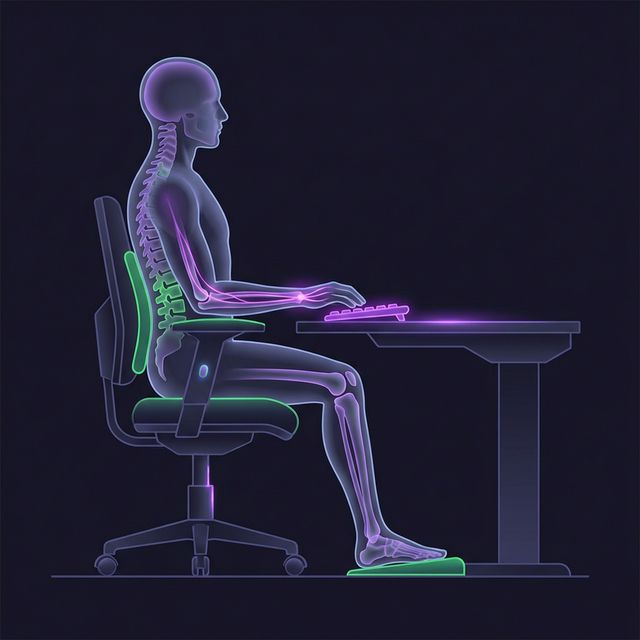
Medical Disclaimer: This guide provides evidence-based ergonomic best practices for computer workstation ergonomics. It is not a substitute for clinical medical evaluation. If you experience persistent numbness, tingling, burning, or sharp pain in your wrists, hands, or fingers, consult a licensed physical therapist or orthopedic physician immediately.
The Biomechanics of Typing: Why Wrists Hurt
A professional typing at an average rate of 65 Words Per Minute (WPM) executes approximately 19,500 keystrokes per hour. Over an eight-hour workday, your fingers flex and extend over 150,000 times! That level of repetitive muscular contraction creates microscopic friction along the flexor tendons that pass through the carpal tunnel in your wrist.
Under ideal ergonomic alignment, the carpal tunnel remains open and uncompressed. However, modern desk setups frequently force wrists into three hazardous postures:
1. Wrist Extension (Dorsiflexion)
Occurs when keyboards are elevated at steep angles or placed on high desks. Bending wrists upward increases carpal tunnel pressure by up to 300% to 600%, crushing the median nerve against the transverse carpal ligament.
2. Ulnar Deviation (Winged Wrists)
Occurs when typists angle their hands outward toward the pinky fingers to accommodate a narrow, flat keyboard. This forces tendons to slide through tight pulleys at unnatural angles, causing tenosynovitis.
3. Direct Contact Stress
Resting the soft undersides of your wrists against hard desk edges or elevated gel pads compresses blood vessels and nerves, leading to numbness, tingling, and chronic inflammation.
The Gold Standard: Achieving the "Neutral Wrist" Posture
According to guidelines published by the Occupational Safety and Health Administration (OSHA) and the Human Factors and Ergonomics Society (HFES), optimal computer keyboard ergonomics requires the following adjustments:
1. Forearms Parallel to the Floor
Adjust your chair height so that when your fingers rest on the home row, your elbows form a 90- to 100-degree open angle. Your shoulders should remain relaxed and dropped, never hunched or shrugged upward.
2. Hover Like a Pianist
Watch a classical concert pianist play complex concertos at lightning speed for three hours without injury. Their secret? They hover their wrists in a straight line with their forearms. Their hands float gracefully above the keys, and finger movement is initiated from the forearm and shoulder rather than strained finger reaches.
3. Negative Tilt (The Secret of Ergonomic Trays)
Most commercial keyboards feature fold-out plastic feet on the back. Never flip those feet out! Elevating the back of the keyboard induces severe wrist extension. The most ergonomic position is either completely flat (0 degrees) or slightly angled downward away from you (negative tilt), which allows your wrists to remain in natural, relaxed alignment.
Keyboard Hardware Choices: Split vs Standard
If you type more than 4 hours per day, your keyboard hardware can make a profound difference in joint longevity:
| Keyboard Form Factor | Ergonomic Benefits | Trade-offs / Learning Curve | Recommended User |
|---|---|---|---|
| Standard Row-Staggered (60% / TKL) | Universal layout, no learning curve | Forces ulnar deviation on broad shoulders | Casual typists (<2 hours daily) |
| Monoblock Ergonomic (e.g., Alice / Wave) | Split angle reduces ulnar deviation | Fixed width cannot adapt to shoulder width | Office workers seeking easy upgrade |
| True Split Keyboards (e.g., Ergodox, Moonlander) | Independent halves match exact shoulder width; tenting eliminates forearm pronation | Requires 1 to 2 weeks to adjust to ortholinear columns | Heavy typists, coders, RSI sufferers |
Key Switch Actuation Force & Bottoming Out
Heavy membrane switches require 60 to 80 grams of force and force you to slam each key into hard plastic ("bottoming out"). This repeated micro-impact travels directly up the finger bones into the wrist joints.
High-quality mechanical switches with light actuation (such as 45g linear switches) allow you to register keystrokes halfway through key travel without bottoming out. Test your current keyboard responsiveness with our Keyboard Tester & Switch Latency Diagnostic.
The 20-20-20 Micro-Break Protocol for Typists
The human body was not designed for static muscular loading. Incorporate this structured break cadence into your daily routine:
- Every 20 Minutes: Pause typing for 20 seconds. Drop your arms to your sides and shake them gently to restore arterial blood flow to your fingers.
- Every 60 Minutes: Stand up from your desk, stretch your chest and hamstrings, and drink water.
3 Proven Stretches for Keyboard Workers
1. The Prayer Stretch (Wrist Flexor Stretch)
Place your palms together in front of your chest in a prayer position. Slowly lower your hands while keeping your palms pressed together until you feel a gentle, pleasant stretch across the undersides of your forearms. Hold for 20 seconds. Repeat 3 times.
2. The Reverse Prayer (Wrist Extensor Stretch)
Extend your right arm straight in front of you with palm facing down. Use your left hand to gently pull the right fingers downward toward your body. Hold for 20 seconds, then switch arms.
3. Tendon Gliding Exercises
Start with fingers straight and pointing up. Make a hook fist (bend only the top two joints). Next, make a flat fist (straight knuckles, bent fingers). Finally, make a full fist. This sequence ensures all flexor tendons glide smoothly through their synovial sheaths without catching.
Frequently Asked Questions
Does touch typing cause less pain than hunting and pecking?
Yes, significantly less. Hunt-and-peck typists constantly crane their necks down to stare at keys, inducing severe cervical spine strain ('text neck'). Furthermore, hunt-and-peck typists strike keys with only two or three fingers, concentrating hundreds of thousands of keystrokes onto the same overloaded index finger tendons.
Can switching to Dvorak or Colemak reduce wrist pain?
Alternative keyboard layouts (like Colemak and Dvorak) reduce overall finger travel distance by up to 50% compared to traditional QWERTY by keeping common letters on the home row. While they do not cure Carpal Tunnel Syndrome on their own, they significantly reduce finger movement fatigue.